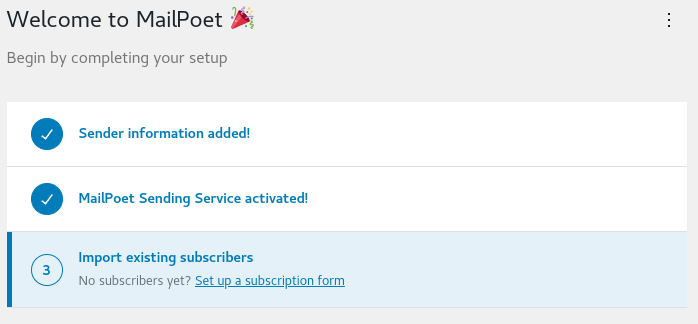
MailPoet is the Plugin that we are using to send emails from your website.
This is how you will send out Newsletters, connect with Partners, and even receive donations.
Install MailPoet.
- Go to Dashboard.
- Go to Plugins.
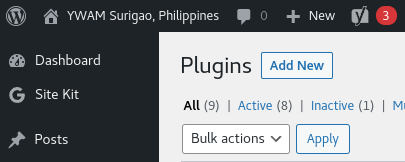
- Click on Add New.
- Search for Mailpoet.
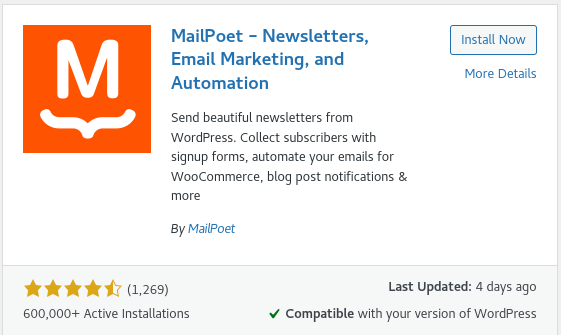
- Install Now & Activate.
- Let’s Begin setup.

- YWAM STAFF: you need a non-Gmail email address to do this. We can provide this for you. You will need to work with me to get this started. yourname@ywam.life.
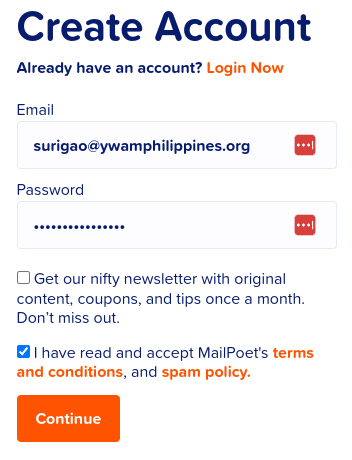
- YWAM BASE: Give your account your Base Name and Email Address. This would be something like YWAM Surigao and surigao@ywamphilippines.org.
You can not use a gmail.com or hotmail.com account; this email address has to be a business email address.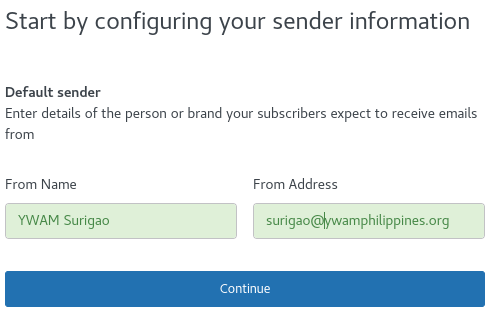
- Confirm privacy and data settings. Put a check in both areas.
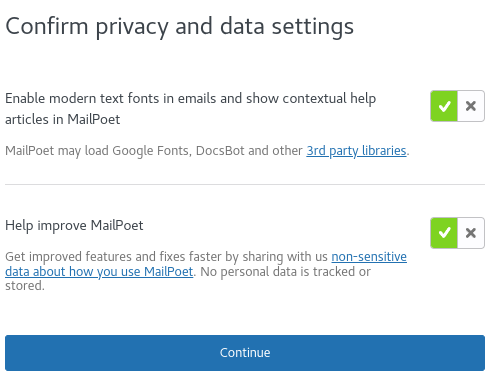
- You should now have three checks and the option to Connect MailPoet. Let’s click this button.
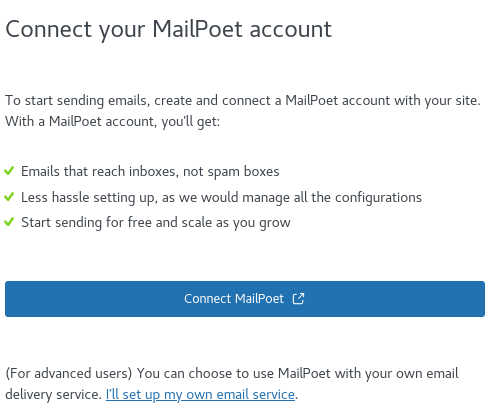
- Connect MailPoet.

- A new tab will open at https://account.mailpoet.com.
- Click on the Account button in the top right corner of your Browser.

- Click on Sign up Now!.

- Create your account with your YWAM Bases email address.
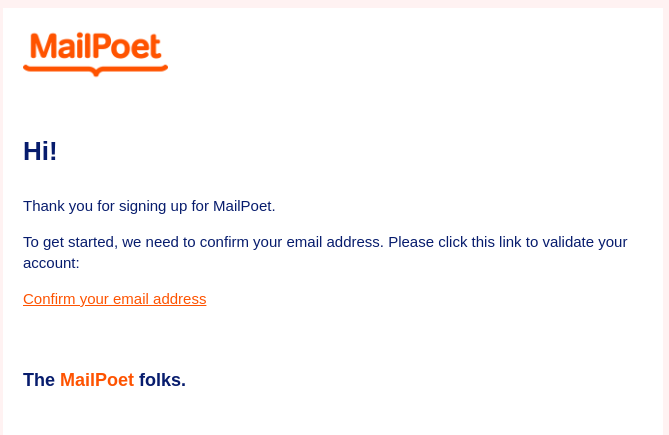
- Go to your email account and there should be an email waiting from MailPoet.
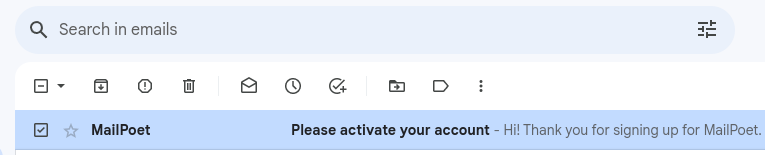
- Open the email and click on the Confirm your email address.
- This will take you back to the MailPoet website and on this new Tab, we need to Add plan.

- We will be going with the Starter, Free account. This will give you 1,000 subscribers and 5,000 emails a month.
As we work with you to develop your Base and Ministries, it would be amazing if you ended up with 1,000 people praying for you, partnering with you, and helping to support your work.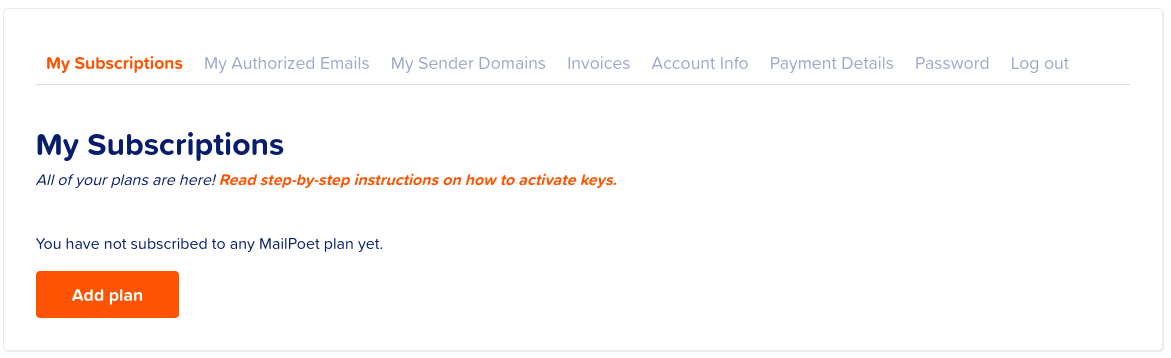
- Click on Start for Free.

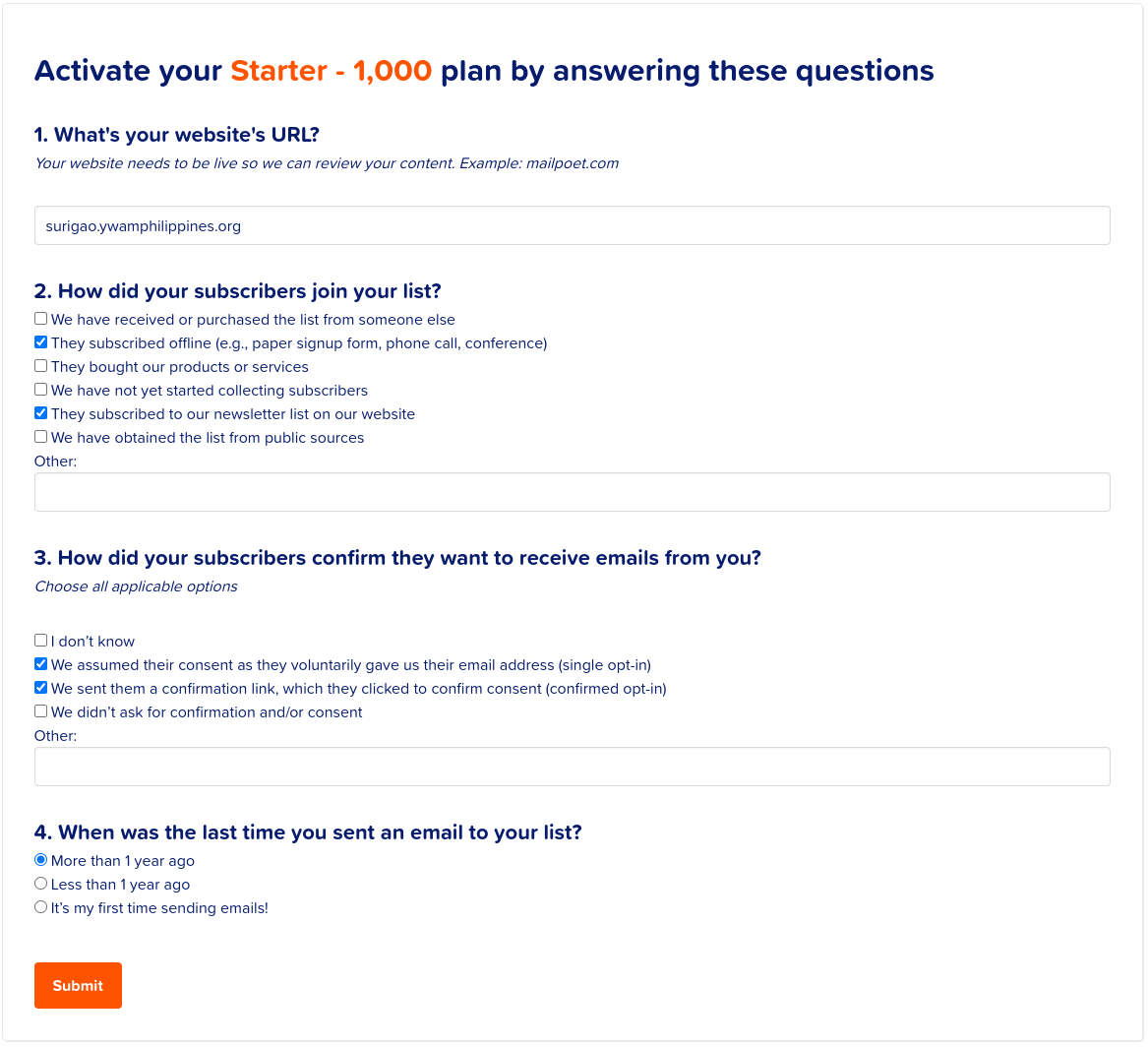
- On the next page, set it up as below and click on Submit.
- This will give you an Activation API key. Copy this.
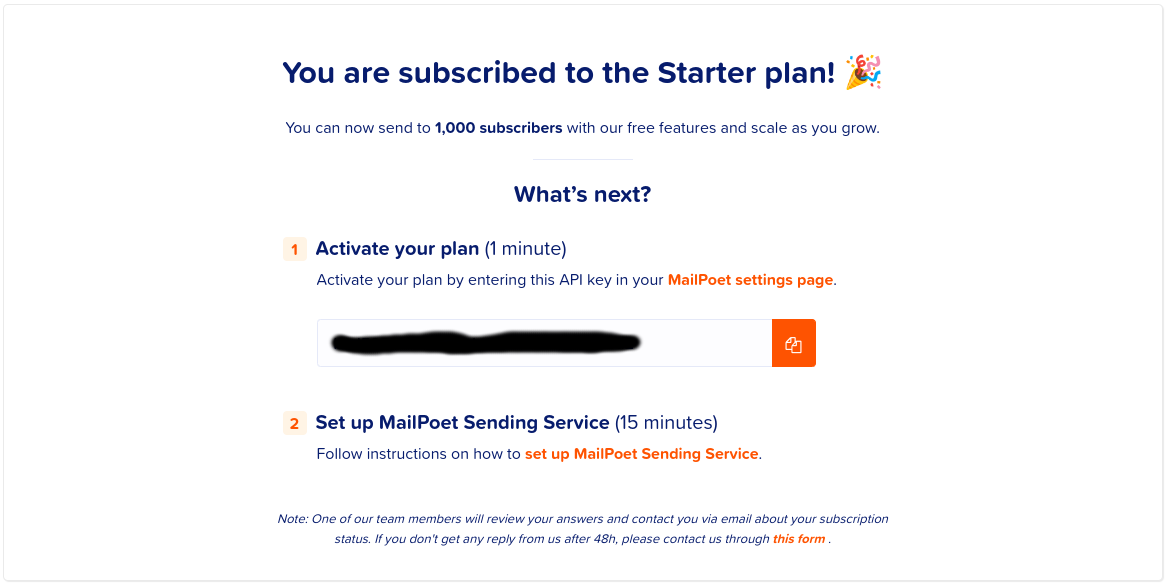
- And back at your website, you will have the page to enter this.
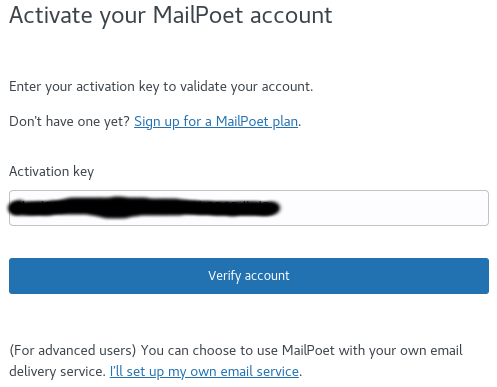
- Click Verify account, wait and you should get this.
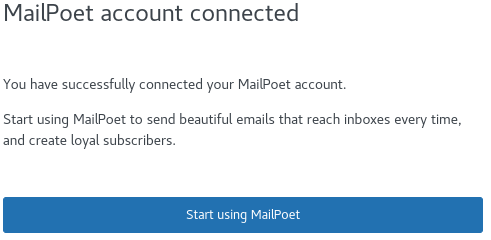
- Click on Start using MailPoet,
- You will see that your account in under review.

- We are now ready for the next Lesson.